Steward AI for Perfex CRM
Version 1.0.0. AI agent, approval queue, audit trail and MCP server module for Perfex CRM 3.2 and newer.
AI tools were used to assist with parts of the code, documentation and graphics of this item.
Steward AI is an independent module. It is not affiliated with, endorsed by or sponsored by Perfex CRM or its authors, Anthropic, OpenAI, OpenRouter or Ollama.
How Steward AI works
Staff, automations and external AI apps all go through the same agent. Reading follows each person's Perfex permissions; every change waits in the approval queue and is applied by Perfex itself after a person approves it.
1. Requirements
| Item | Minimum |
|---|---|
| Perfex CRM | 3.2.0 or newer (developed against the 3.4.x module API) |
| PHP | 8.1 to 8.5 (the same range Perfex itself supports) |
| PHP extensions | cURL, OpenSSL, mbstring, JSON (all already required by Perfex) |
| Database | MySQL 5.7+ or MariaDB 10.3+ with InnoDB (Perfex's own database) |
| Cron | The Perfex cron job must run (Setup > Settings > Cron Job). Automations, expiry of old requests and clean-up use it. |
| AI provider | An account with Anthropic, OpenAI or OpenRouter, or an Ollama server you run yourself |
| External AI apps (optional) | Public HTTPS address for Claude custom connectors; a plain key works from any network for Claude Desktop, Claude Code or Cursor |
The module does not need Composer, Node.js or shell access on the server. It ships no third-party PHP libraries.
2. Costs outside the item price
You pay these providers directly, from your own accounts. These costs are not included in the price of the item; who pays is you, to the provider.
- AI provider usage. Anthropic, OpenAI and OpenRouter bill per token. Steward AI shows an estimate and lets you set hard limits (section 8), but your provider's invoice is the authority.
- Hosting. Your Perfex hosting. Running Ollama locally needs a server with enough memory for the model you choose.
- Optional tools on your side. Claude, ChatGPT or Cursor subscriptions if you connect them through MCP.
3. Installation
- Download the item from CodeCanyon and unzip the download on your computer. Inside the
uploadfolder you findsteward_ai.zip. Do not unzip that file. - In Perfex, open Setup > Modules, click Upload Module, choose
steward_ai.zipand upload it. - Click Activate next to "Steward AI - Agent and MCP Server". Activation creates the module's own database tables (all named
tblsteward_ai_*). Perfex's tables are not changed. - A new Steward AI menu appears in the sidebar for administrators.
- Continue with Connect an AI provider.
Manual alternative: unzip steward_ai.zip and copy the steward_ai folder into Perfex's modules folder over FTP, then activate it in Setup > Modules.
Quick start: first-run walkthrough
A step-by-step first run after activation, all in the Perfex admin, without code:
- Steward AI > Home. The setup checklist shows what is left. It ticks itself as you go.
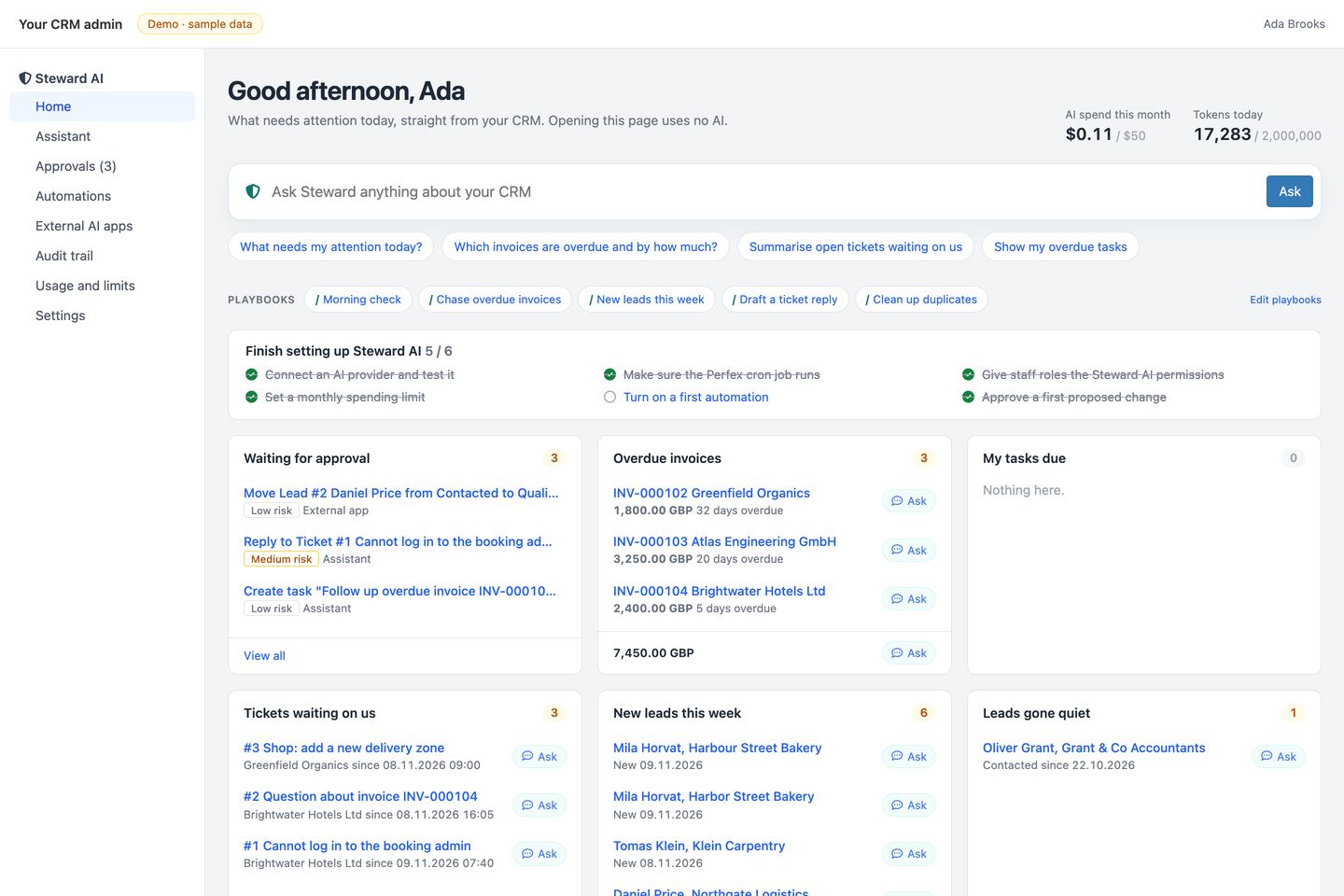
Home briefing (screenshots in this guide show the module on made-up sample data). - Settings > AI provider: choose a provider, paste the key, click Test connection (section 4).
- Settings > Spending limits: set a monthly limit before your team starts (section 8).
- Setup > Staff > Roles: give the Steward AI permissions to the roles that should use it (section 5).
- Steward AI > Assistant: ask "What needs my attention today?", then ask for a change, for example a follow-up task.
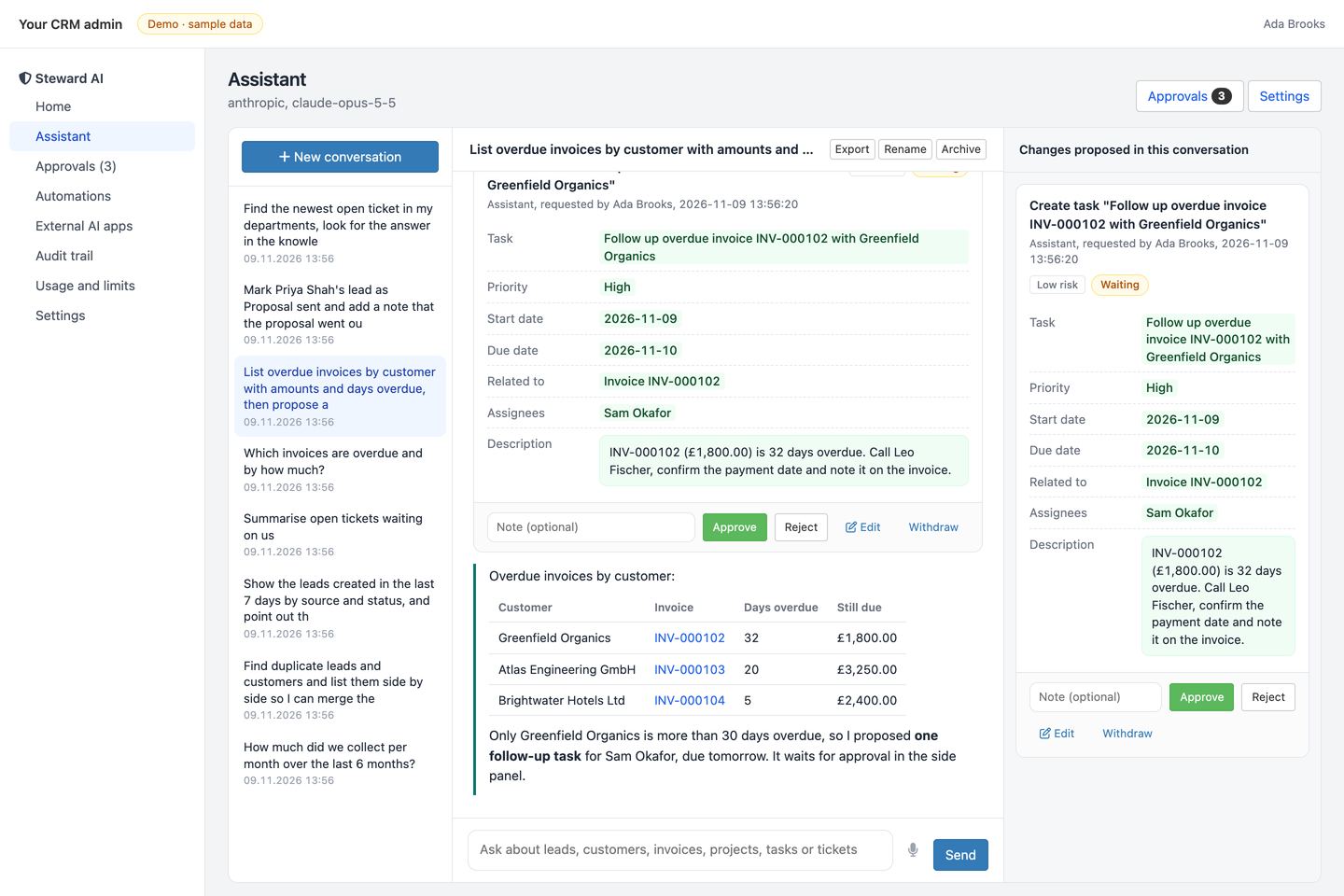
An answer with record links and a proposed change. - Steward AI > Approvals: approve, edit or reject the request. Only now is the task created.
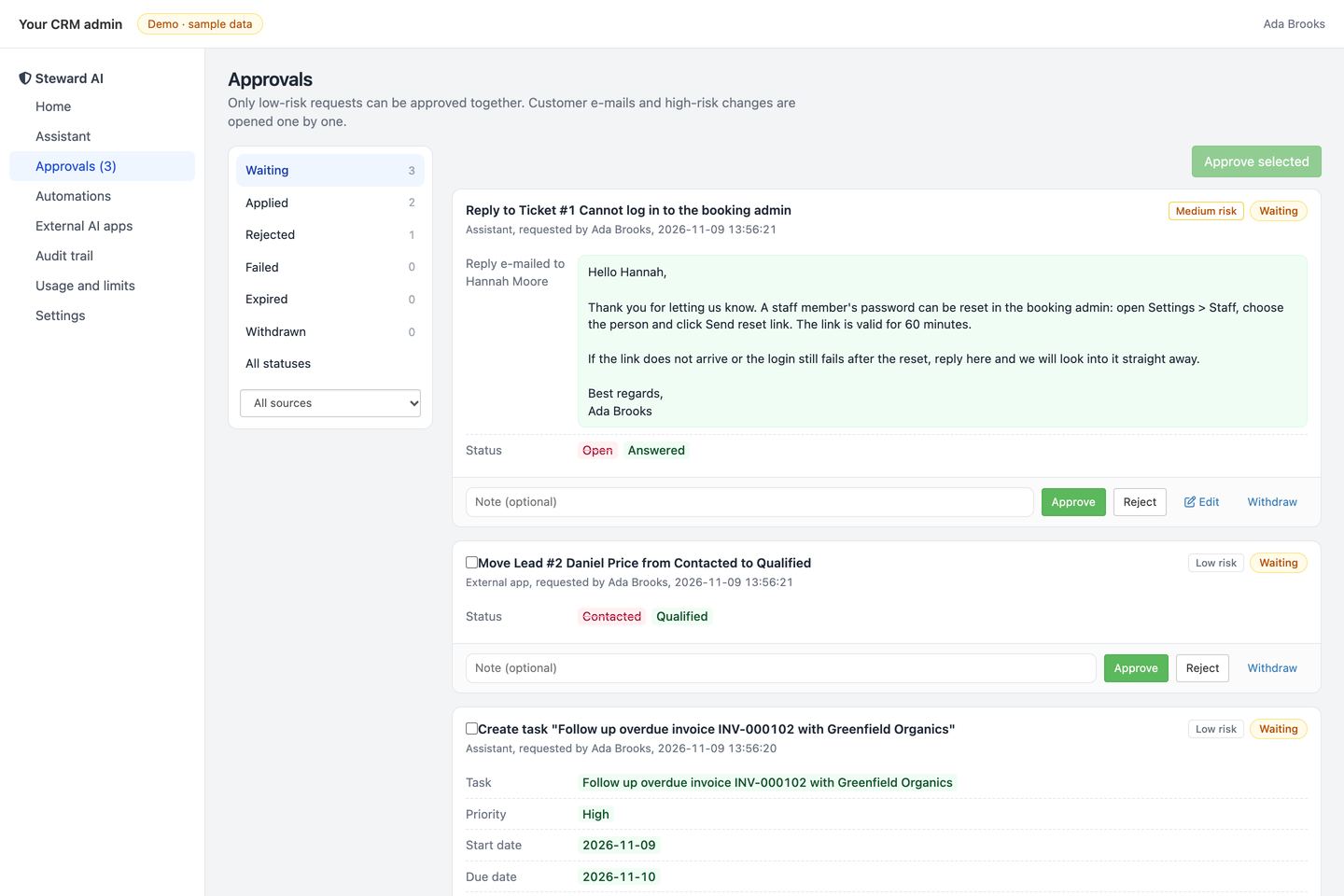
The approval queue. - Settings > Tools and Settings > Playbooks: switch tools off, allow chosen low-risk tools to apply without approval, and write your team's playbooks. Everything the module offers is customised here in the console, without code.
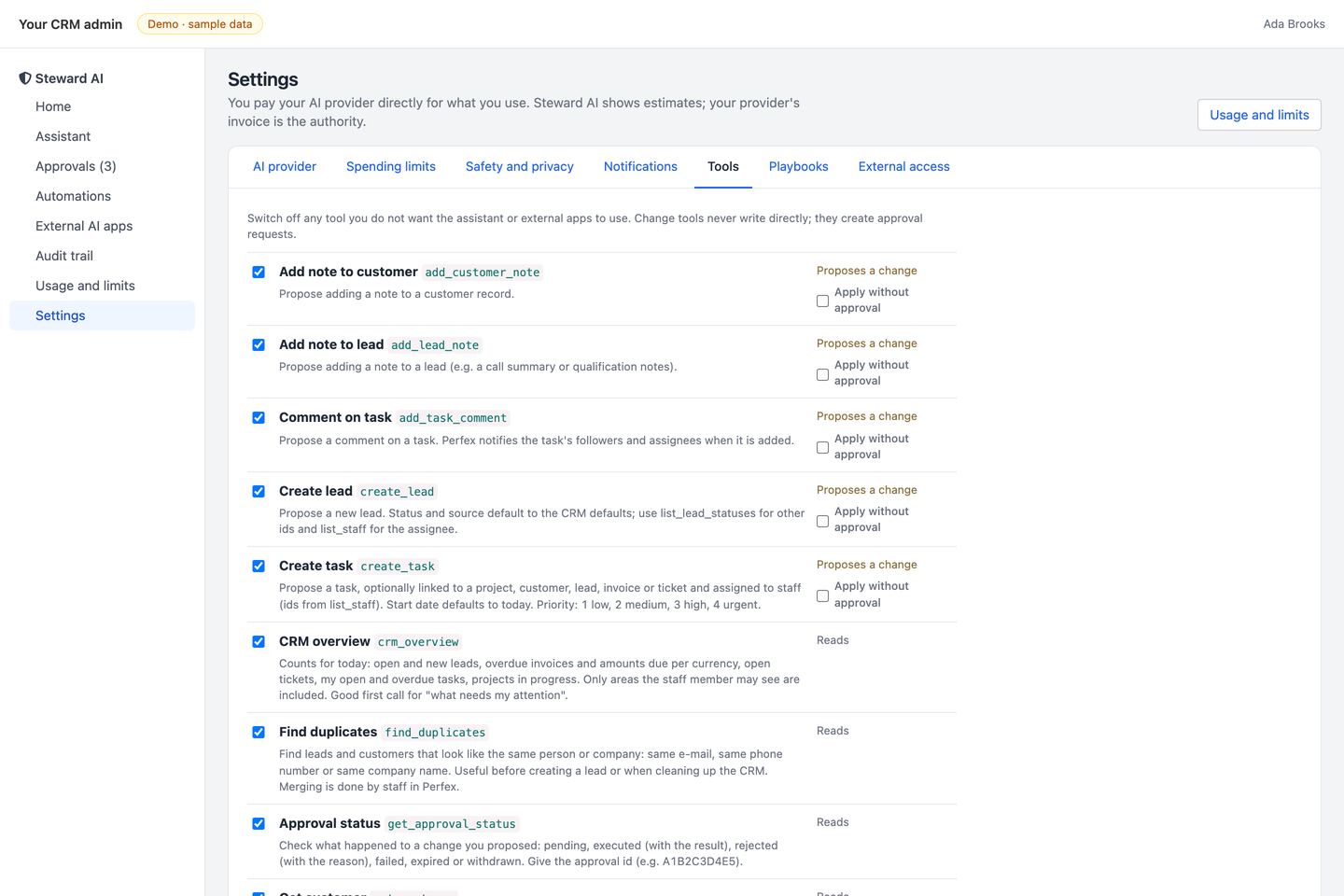
Settings > Tools.
4. Connect an AI provider
Open Steward AI > Settings > AI provider, choose a provider, paste the key and click Test connection. The test sends one short request and shows the model's answer.
| Provider | Where to get the key | Model field |
|---|---|---|
| Anthropic (Claude), default | console.anthropic.com > API keys | claude-opus-5-5 (default), claude-sonnet-5-5 or claude-haiku-5-5 for lower cost |
| OpenAI | platform.openai.com > API keys | Any chat model with function calling that your account can use |
| OpenRouter | openrouter.ai > Keys | Any model id from openrouter.ai/models that supports tools |
| Ollama (local) | No key. Base URL, e.g. http://localhost:11434/v1 | A local model that supports tool calling, e.g. qwen2.5:7b or llama3.1:8b |
| Other OpenAI-compatible API | Your gateway's key and base URL | As your gateway names it |
Keys are stored encrypted with your Perfex encryption key and are never shown again or written to the audit trail. If you change the provider or base URL without entering a key again, the saved key is removed so it is never sent to a different server.
Fallback provider (optional): used only when the main provider is overloaded, rate limited or unreachable. A wrong key is reported, not hidden behind the fallback.
Reasoning effort (Claude only): medium is the default and a good balance. high gives more careful answers at higher cost; low is faster and cheaper.
Instructions for the assistant: house rules added to every conversation, for example "Answer in German" or "Our VAT rate is 20%".
5. Staff permissions
In Setup > Staff > Roles (or per staff member) Steward AI adds these permissions. Administrators have all of them.
| Permission | What it allows |
|---|---|
| Use the assistant | Chat with the agent, on its page and in the drawer on every admin page; see and withdraw their own requests |
| Approve or reject requests | Decide on requests from anyone; the change still needs the approver's own Perfex permission for that area |
| Connect external AI apps (MCP) | Create personal API keys and approve OAuth connections that act as themselves |
| View the audit trail | Search, verify and export the audit trail |
| Manage settings, automations and keys | Settings, usage, automations, and revoking anyone's keys and connections |
6. Using the assistant
Steward AI > Home is a short briefing straight from your CRM, without any AI call: requests waiting for approval, overdue invoices with totals per currency, your tasks due, tickets waiting on your team, new leads and leads that have gone quiet. Each line has an Ask button that opens the assistant with a ready question about that record. Administrators also see a setup checklist that ticks itself as the module is configured.
- Steward AI > Assistant is the full page: conversations on the left, the chat in the middle, and the changes proposed in the conversation on the right.
- On any other admin page, click Ask Steward AI at the bottom right or press
Ctrl+J(Cmd+Jon a Mac). On a lead, customer, invoice, project, task or ticket page the assistant knows which record is open. - Small labels under the question show what the assistant read ("Read: Search invoices"). When it proposes a change you see a change card with the current value crossed out and the new value next to it.
- While the assistant works you see what it is doing ("Working: Search invoices"). Click a label to see what the tool was asked.
- Answers link to the records they mention, and figures for several records come as a small table. Export saves a conversation as a Markdown file; the microphone button dictates a question (in browsers that support speech input).
- Reports in plain language: "How much did we collect per month this year?", "Who owes us the most?", "Leads by source for the last 6 months".
- Playbooks: type
/in the chat box to pick one of your team's saved requests (arrow keys and Enter, or click). The request is placed in the box so you can adjust it before sending. Playbooks also appear on the home page. Administrators edit them in Settings > Playbooks, one per line asTitle | request; the module ships five examples. - Language: the assistant answers in the language set in the staff member's Perfex profile (or the system language). If someone writes in another language, it answers in that one.
- Examples: "What needs my attention today?", "Which invoices are overdue and by how much?", "Summarise ticket 42 and draft a reply", "Create a follow-up task for Sam on the Test Website project for Friday".
7. Approvals
Every change (create a lead or task, change a status, add a note or comment, reply to a ticket) becomes a request in Steward AI > Approvals. Approvers also get a Perfex notification.
- Approve applies the change through Perfex's own functions, as the approving staff member, so Perfex's activity log, notifications and e-mails work as usual.
- Before applying, Steward AI checks the record did not change since the request was made. If it did, the request is marked failed and nothing is overwritten.
- Risk: low (internal notes, tasks, statuses), medium (anything e-mailed to a customer, such as ticket replies). Requests from your own modules can be high risk; with the default setting a second person must approve those.
- Edit lets the approver change the proposal first, for example reword a reply to a customer or move a due date. The change is checked again and recorded in the audit trail.
- Reject asks for a reason (one click: wrong record, content not right, not needed now, needs more detail). The reason goes back into the conversation, so the assistant can propose a better version.
- Approve all in the assistant's side panel applies a multi-step plan (for example a note, a status change and a follow-up task) in the order proposed and stops at the first step that fails.
- Keyboard in the queue:
j/kmove,aapprove,rreject,eedit,xselect. - Approve selected handles several low-risk requests at once. Medium and high risk requests are always opened one by one.
- Apply without approval (off by default): in Settings > Tools an administrator can tick this for individual low-risk tools, such as adding an internal note or a task comment. Requests a staff member makes with those tools live in the assistant are then applied at once, under that staff member's own Perfex permissions, and recorded in the audit trail as applied by the rule. Medium and high risk tools cannot be ticked, and requests from automations and external AI apps always wait for a person.
- Requests expire after 7 days by default (Settings > Safety and privacy). The requester can withdraw their own request.
Version 1.0 contains no delete actions and nothing that moves money.
8. Spending limits
Settings > Spending limits. When a limit is reached the assistant stops and says which limit; nothing more is sent to the provider until it resets or you raise it. 0 switches a limit off.
| Limit | Default |
|---|---|
| Daily tokens, everyone together | 2,000,000 |
| Daily tokens per staff member | 300,000 |
| Daily tokens for automations | 500,000 |
| Monthly spending limit (USD, estimated) | 50 |
| Model calls per question | 12 |
Prices for Claude models are built in. For OpenAI, OpenRouter or a gateway, enter your prices as model = input / output in USD per million tokens, one per line. Ollama costs nothing per token. Steward AI > Usage and limits shows today, this month, cost per model and the last 30 days.
9. Automations and cron
Steward AI > Automations runs the agent in the background. Six templates are included; you can edit them or write your own instructions.
| When | Template |
|---|---|
| A new lead is created | Qualify new leads: summary, fit score and next step as a proposed note |
| A new ticket is opened | Draft first reply, grounded in the customer's records |
| Once a day: overdue invoices | Propose follow-up tasks for overdue customers |
| A payment is recorded | Next step after a paid invoice: propose a task when work was waiting on payment |
| Once a day: overdue tasks | Ask assignees of tasks more than 3 days overdue for a new date |
| Once a day: daily brief | A short brief in the run log |
A new lead or ticket only puts a job in a queue; the Perfex cron runs it, so creating a lead never waits for the AI. Each automation runs with the permissions of a chosen staff member and everything it wants to change waits for approval. "Recent runs" shows each run's full transcript.
Notifications in team chat
Settings > Notifications posts new and decided requests to a Slack, Microsoft Teams or Discord incoming webhook, a Telegram group (bot token and chat id, stored encrypted) or any HTTPS endpoint as JSON (useful for n8n, Make or Zapier). Messages link to the request; approving always happens in Perfex, signed in. Send a test message checks the setup.
10. External AI apps (MCP)
Claude, ChatGPT, Cursor and other apps can use your CRM through the Model Context Protocol. Turn it on in Settings > External access, then open Steward AI > External AI apps. The endpoint is:
https://YOUR-CRM-DOMAIN/steward_ai/mcpIt supports MCP protocol 2026-07-28 and the earlier 2025-11-25, 2025-06-18 and 2025-03-26 versions. Whatever an external app wants to change goes to the same approval queue; the app gets the request id and can check it with the get_approval_status tool.
Claude (custom connector, recommended)
- Your CRM must be reachable over public HTTPS (Claude connects from Anthropic's servers).
- In Claude open Settings > Connectors > Add custom connector and paste the endpoint.
- Claude opens your CRM. Sign in to Perfex if asked, choose what Claude may access on the consent page, and click Allow access.
Connected apps are listed under "Apps connected with OAuth", where you can disconnect them. A staff member needs the "Connect external AI apps" permission to approve a connection.
Claude Desktop with a key
Create a key under API keys (it is shown once), then add this to claude_desktop_config.json. It needs Node.js on the computer running Claude Desktop.
{
  "mcpServers": {
    "perfex": {
      "command": "npx",
      "args": ["-y", "mcp-remote", "https://YOUR-CRM-DOMAIN/steward_ai/mcp",
               "--transport", "http-only", "--header", "Authorization:${STEWARD_AUTH}"],
      "env": { "STEWARD_AUTH": "Bearer stw_your_key_here" }
    }
  }
}
Keep the space inside the env value, not in args; this avoids a quoting problem on Windows.
Claude Code
claude mcp add --transport http perfex https://YOUR-CRM-DOMAIN/steward_ai/mcp --header "Authorization: Bearer stw_your_key_here"Cursor and other clients
Add a Streamable HTTP server with the endpoint above and the header Authorization: Bearer stw_your_key_here. Keys are never accepted in the URL.
Keys
- Each key acts as one staff member and can never do more than that person in Perfex.
- Per area you choose no access, read, or read and propose changes.
- Optional expiry date and IP allowlist (single addresses or ranges such as
10.0.0.0/8). - Only a fingerprint (SHA-256) of the key is stored. Revoking a key stops it immediately.
- Lost or leaked key: a key is shown once and cannot be recovered. Revoke it and create a new one; rotate keys this way whenever someone leaves the team.
- AI provider key: stored encrypted with Perfex's encryption key. To rotate it, paste the new key in Settings > AI provider; the old one is replaced. If Perfex's encryption key ever changes (for example after moving the install without
application/config/app-config.php), saved keys can no longer be read: enter them again. - Each key or app is limited to 60 requests per minute by default.
Root-level discovery (optional)
MCP clients find the sign-in server through a link the endpoint returns, so no server change is needed. A few clients only look at the root of the domain. For those, add these lines to Perfex's .htaccess above the existing rewrite rules:
RewriteRule ^\.well-known/oauth-protected-resource(/.*)?$ steward_ai/oauth/protected_resource [L]
RewriteRule ^\.well-known/oauth-authorization-server/steward_ai/oauth$ steward_ai/oauth/metadata [L]
11. Audit trail
Steward AI > Audit trail records every read, proposal, approval, rejection, execution, failure, sign-in to the MCP endpoint, key change, settings change and limit stop, with who did it (staff member, automation or external app) and from which address.
- Each entry stores a SHA-256 fingerprint of the entry before it. Verify chain recomputes them and names the first entry that was edited or deleted in the database.
- Export CSV includes the fingerprints, so the export can be checked independently.
- API keys, tokens and passwords are removed before anything is written.
12. Privacy and safety
- What leaves your server: the question, the staff member's name, your company name, today's date and the CRM data the assistant reads to answer, sent to the AI provider you configured. With Ollama nothing leaves your network.
- Mask contact details: Settings > Safety and privacy can mask e-mail addresses and phone numbers before data is sent to the provider.
- Untrusted text: ticket messages, lead descriptions and notes are written by other people. The assistant is told to treat them as data, never as instructions, and any change it might be tricked into proposing still needs approval.
- Your provider's own data policy applies to what you send it.
13. Tools reference
Switch any tool off in Settings > Tools.
| Tool | Kind | Perfex rule |
|---|---|---|
| crm_overview, list_staff, get_approval_status | Read | Counts only for areas the person can see; get_approval_status shows only their own requests |
| run_report | Read | Each report follows the visibility rule of its area |
| find_duplicates | Read | Leads and customers the person can see |
| search_knowledge_base | Read | Knowledge base view; staff-only articles excluded unless asked |
| search_leads, get_lead, list_lead_statuses | Read | Lead visibility |
| search_customers, get_customer | Read | Customer admin rule |
| search_invoices, get_invoice | Read | Invoices view / view own / sale agent |
| search_projects, get_project | Read | Project membership |
| search_tasks, get_task | Read | Task assignees, followers, creator, public |
| search_tickets, get_ticket | Read | Departments (when "only assigned departments" is on) |
| create_lead, update_lead_status, add_lead_note | Proposes | Any staff member may add leads; editing follows lead visibility |
| add_customer_note | Proposes | Customer visibility |
| create_task, add_task_comment | Proposes | Tasks create; comments on visible tasks |
| update_task_status | Proposes | Tasks edit, or assignee or creator |
| reply_to_ticket (medium risk), update_ticket_status | Proposes | Ticket visibility |
14. Adding tools from your own module
Any Perfex module can add tools. They get argument validation, permissions, the approval queue and the audit trail without extra code.
hooks()->add_filter('steward_ai_register_tools', function ($tools) {
    $tools[] = new My_module_overdue_contracts_tool(); // implements \StewardAi\Core\Tools\ReadTool
    return $tools;
});
A read tool implements name(), title(), description(), inputSchema() (JSON Schema with "additionalProperties": false), kind() ("read"), feature() (a Perfex permission area),
capability() and run(array $args, ToolContext $ctx).
A write tool implements WriteTool instead: risk(), preview() returning an ActionPreview with the before/after values, and
execute(), which runs only after approval. Look at libraries/Core/Tools/Crm/AddLeadNoteTool.php for a complete example.
15. Updating and uninstalling
- Update: deactivate the module, upload the new
steward_ai.zipin Setup > Modules (it replaces the files), and activate it again. Your settings, keys, requests and audit trail stay. - Deactivate: the menu, the drawer and the MCP endpoint switch off; data stays.
- Uninstall: removes every
tblsteward_ai_*table and everysteward_ai_*option. Perfex's own data is not touched. Export the audit trail first if you need it.
16. Troubleshooting
| What you see | What to do |
|---|---|
| "Add an AI provider key in Settings" | Settings > AI provider: paste the key and click Test connection. |
| "rejected the API key" | The key is wrong, expired or has no credit. Create a new one at the provider. |
| "does not know the model" | Check the model id spelling; for OpenRouter copy it from openrouter.ai/models. |
| Ollama: "Could not reach localhost" | The Perfex server must reach Ollama. If Ollama runs on another computer, use its address and start Ollama with OLLAMA_HOST=0.0.0.0. |
| The assistant writes tool calls as text | The model does not support tool calling well. Use a larger or tool-capable model. |
| Ollama answers poorly or ignores tools | Ollama uses a 4,096-token context by default, too small for the tool list. Start Ollama with OLLAMA_CONTEXT_LENGTH=16384 (or more) and use a 7B+ model with tool support. |
| Knowledge base search finds nothing | The staff member needs the Perfex "Knowledge base: view" permission. Articles marked for staff only are left out of customer replies on purpose. |
| "daily token limit ... has been reached" | A spending limit stopped the agent. Raise it in Settings > Spending limits or wait for midnight. |
| The answer takes long or times out | Long questions can take a minute. If your host stops PHP after 30 seconds, ask it to allow 120 seconds for admin requests, or use a faster model or lower effort. |
| A request "Failed: The record changed..." | Someone edited the record after the proposal. Ask the assistant again so it sees the current values. |
| "High-risk requests need a second person" | Another approver must decide. Single-admin installs can allow self-approval in Settings > Safety and privacy. |
| Automations never run | The Perfex cron is not running. Settings shows the last cron run. |
| Claude connector: "couldn't connect" | The CRM must be on public HTTPS, the MCP endpoint must be on (Settings > External access), and OAuth must be allowed. Some firewalls block requests from Anthropic's servers. |
| MCP client gets 401 | Check the header is exactly Authorization: Bearer stw_..., the key is not revoked or expired, the IP is allowed, and the staff member still has "Connect external AI apps". |
| Apache drops the Authorization header | Add SetEnvIf Authorization "(.*)" HTTP_AUTHORIZATION=$1 to .htaccess; Steward AI reads it from there. |
| Verify chain reports a broken entry | An audit row was edited or deleted directly in the database. Compare with your last CSV export and your database backups. |
Commands in this guide that start with claude or npx run on your own computer. On Windows use PowerShell or Git Bash.
17. Changelog
1.0.0 First release: assistant and drawer, home briefing, approval queue with edit, plan approval and reasons,
audit trail, spending limits, automations (new lead, new ticket, payment, overdue invoices, overdue tasks, daily brief),
team chat notifications, reports, duplicates and knowledge base tools, MCP server with keys and OAuth,
team playbooks (/ menu), opt-in "apply without approval" rules for low-risk tools, answers in each staff member's Perfex language.
Support
Support is provided through the item's page on CodeCanyon for six months from purchase, as Envato's item support policy describes. Before contacting support, check Troubleshooting and the Perfex error log (application/logs).